Side configuration
Quantimium's automated machines let you decide, face by face, what pipes, hoppers and neighbouring machines can put in and take out. The same Sides page is used on every machine that has one, and a wrench can change it without opening anything.
| Machine | Items | Fluids | Faces |
|---|---|---|---|
| Quantum Crafter | Yes | No | All six |
| Quantum Simulator | Yes | Yes | All but the top (the field) |
| Tesseract Stabiliser | Yes | Yes | All but the top |
The Basic Quantum Crafter has no side configuration: every face is both an input and an output.
Opening it
Every one of them has a Sides tab on the right of its screen. The page opens in the machine's own frame; click the tab again, the back arrow by its title, or press Escape to go back.
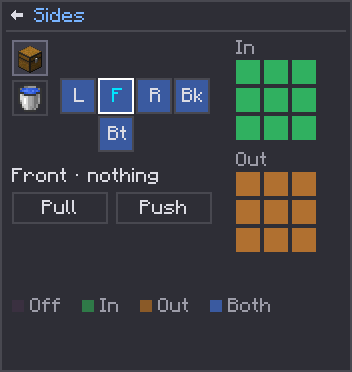
Faces
untested The six faces are laid out as an unfolded cube around the Front: Left, Front, Right and Back across the middle, Top above and Bottom below. They are named from the machine's own facing, not the compass, because every side of the block looks alike. Click a face to pick it: under the net it shows what that face touches.
A face the machine can't automate (a Simulator's top) is left out of the net.
Modes
tested Each face has a mode for items and, separately, for fluids (switch with the chest and bucket buttons at its left):
| Mode | Things can go in | Things can come out |
|---|---|---|
| Off | No | No |
| In | Yes | No |
| Out | No | Yes |
| Both | Yes | Yes |
The face tiles are coloured by mode: dark for Off, green for In, orange for Out and blue for Both. Right-click a face to step its mode on, shift-right-click to step back.
| Machine | Items start as | Fluids start as |
|---|---|---|
| Quantum Crafter | Both | (no fluids) |
| Quantum Simulator | Both | Off |
| Tesseract Stabiliser | Both | Both |
Which slots a face reaches
tested On the Crafter and the Simulator, the In and Out grids on the right choose which slots the picked face works on. Click a cell to allow or block it.
- In covers the nine input slots of the grid.
- Out covers the nine output slots. The Quantum Crafter's output grid has six pages of nine; each cell stands for that position on every page.
- On the Fluids tab the cells are the three input tanks and the three output tanks.
- A Tesseract Stabiliser has no slots of its own; its faces reach all remote slots the link exposes.
Example. A Simulator running a furnace, mapped so the odd grid slots take ore and the even slots take fuel: set the top-facing hopper's face to In with only the odd cells, and a side face to In with only the even cells. Ore and coal then arrive in the right slots from two hoppers.
Automatic transfer
tested Pull and Push make a face move things by itself, without a pipe. Once a second, a face with:
- Pull takes from the block beside it into the slots its In cells allow;
- Push puts from the slots its Out cells allow into the block beside it.
Pull needs a mode that allows input (In or Both), and Push one that allows output. Two small dots on a face tile show which of the two it has on.
On a Quantum Crafter, Push commits a craft and pushes it, sized to the room the neighbour has; see Automation.
Saving
Each change is saved as you make it.
With a wrench
tested Right-click a face of the machine with any wrench (any item in the
#c:tools/wrench tag, such as those from Modern Industrialization or Mekanism):
- Click: cycle that face's item mode: Off → In → Out → Both → Off.
- Sneak-click: cycle its fluid mode.
The wrench only changes the mode. Slot cells, Pull and Push stay on the page. A sneak-click never dismantles or rotates a Quantimium machine, whatever the wrench does elsewhere.